
You track customer interactions in a CRM by recording each email, call and meeting against the contact it was with, and the deal it was about, on one timeline, as close to the moment as you can. Part of that can happen without anyone typing. Email usually can. Calls and conversations usually can’t, unless your phones are part of the system.
This post is about setting the CRM up. For the habits that keep a log alive once it exists, see our earlier post on best practices for tracking calls and logged interactions.
List the ways customers reach you first
Before configuring anything, write down how customers actually get in touch. For most small businesses that means email, phone, meetings or visits, and messages on whatever the team carries in their pockets. Each of those needs one home in the CRM.
That home is a timeline on the contact, and on the deal if there is one. Contacts belong to a company, so opening the company shows everyone you’ve dealt with there. That structure is what lets a colleague pick up a customer without asking around first.
Can it be automatic? Partly
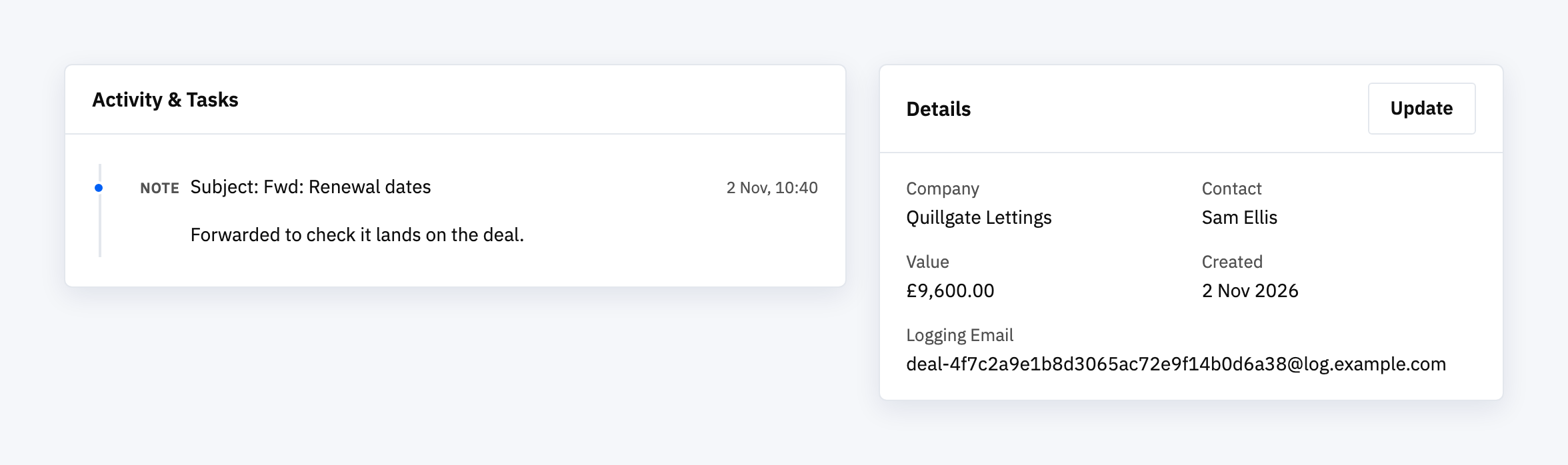
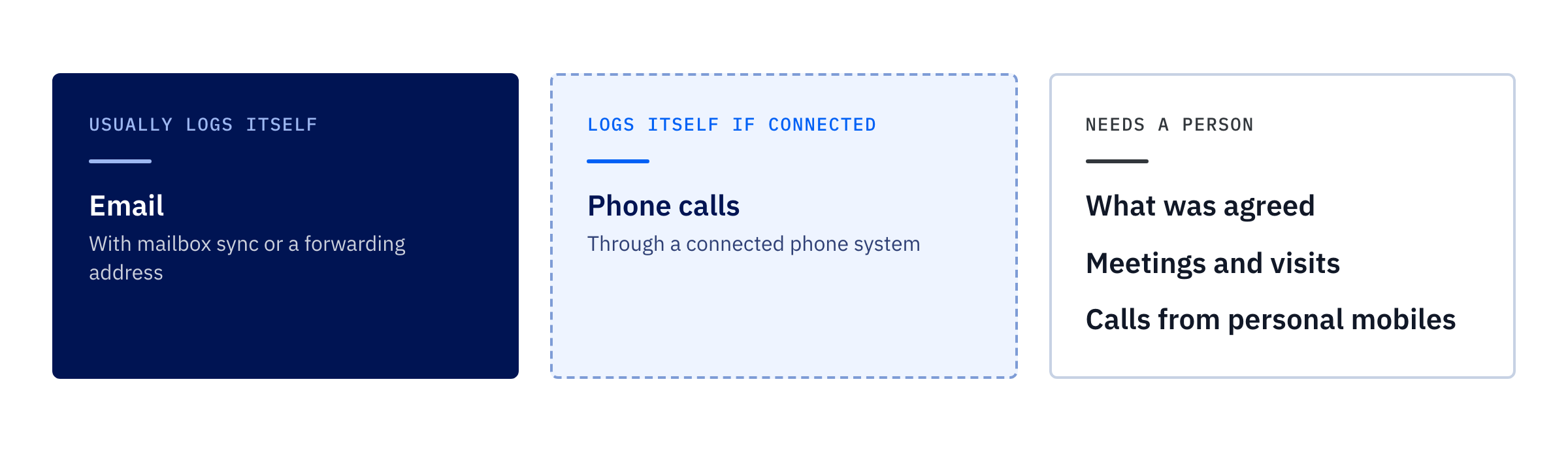
When we compared eight small-business CRMs in August, looking at the cheapest paid tier of each, six included some form of email logging or sync. Email is the channel most likely to fill the timeline by itself. It’s done in one of two ways: connect a mailbox so messages to and from a contact are matched to them, or forward an email to an address the CRM gives you. Our own CRM, Voyager, does the second. Forward an email to a deal’s address and it lands on that deal’s timeline.
Calls are harder. A CRM can only log a call it knows about, which in practice means the call went through the CRM or a phone system connected to it. In our comparison, built-in calling was a step-up feature, not a basic one. If your team rings customers from their own mobiles, every call is a note someone has to write.
Even when a call is logged automatically, the record tells you it happened and how long it lasted. What was agreed usually still needs a person to type it.
Setting it up, step by step
- Pick the one place. Interactions go on the contact or deal timeline in the CRM. Not personal inboxes, notebooks or a shared spreadsheet. Tell everyone.
- Get contacts and companies in before anything else. A CRM can’t match an email to a customer it doesn’t know about. Import the list you already have before connecting any channel.
- Connect email. Use whichever capture your CRM offers, mailbox sync or a forwarding address. Test it with one real customer email before telling the team it works.
- Connect phones only if calls go through a system. If they do, check the CRM’s call logging works with it. If they don’t, treat calls as manual and plan for that.
- Keep the manual entry short. What was asked, what was agreed, what happens next. Three lines is plenty.
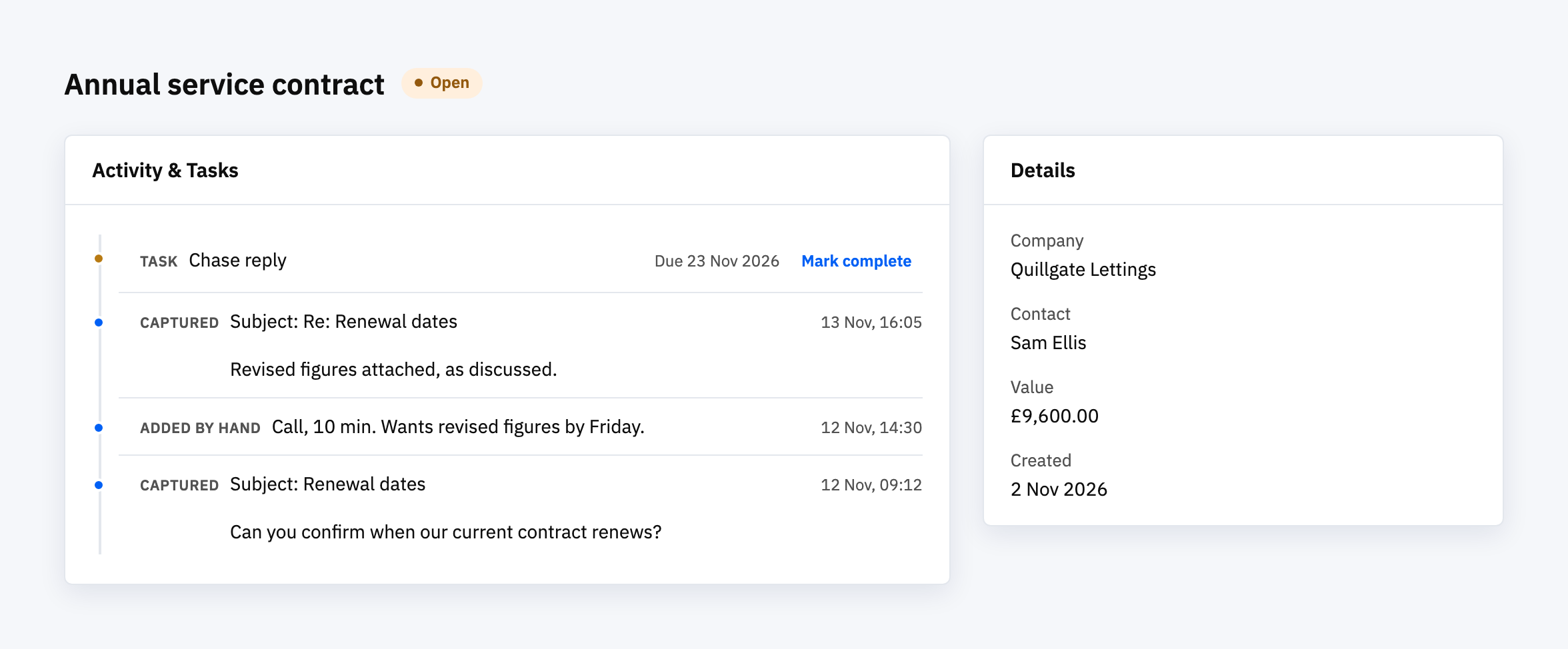
- Give every follow-up a date. An interaction that needs action gets a task with a due date on the same record. In Voyager, a task you own reminds you when it falls due.
- Keep the source visible. If the CRM marks entries as captured or added by hand, leave that on show. It tells you which channels are covered and which depend on someone remembering.
Where automation is worth it, and where it isn’t
Automating capture pays off on the channel where most of your conversations happen. A business that deals with customers mostly by email should sort email capture out first and not worry much about calls. A business that runs on the phone has the opposite problem. Without call logging its timeline will stay thin, however good the email capture is.
Automatic capture can also bury what matters. Auto-replies, newsletters and long copied-in threads all count as email. If they all land on a customer’s timeline, the one line saying what was agreed is hard to find. When you test email capture, look at what arrives as well as whether it arrives.
Automatic for email, a habit for everything else
Connect the channels that can be connected and keep the manual entry short enough that people actually do it. The line saying what was agreed on a call usually still gets typed by someone, whatever the CRM does on its own.
If no standard CRM can capture the channel your business actually runs on, or record the detail you need from it, that’s when a custom build is worth a look. Our post on what custom CRM development is covers when that makes sense and how it differs from a subscription.
Ready to get every customer conversation into one record?
If your calls, emails and notes are spread across inboxes, phones and notebooks, and you’d like to talk through what it would take to bring them together, we’re happy to.